Uber Eats Photo Requirements & Guidelines (2026 Update)
 Ali Tanis14 min read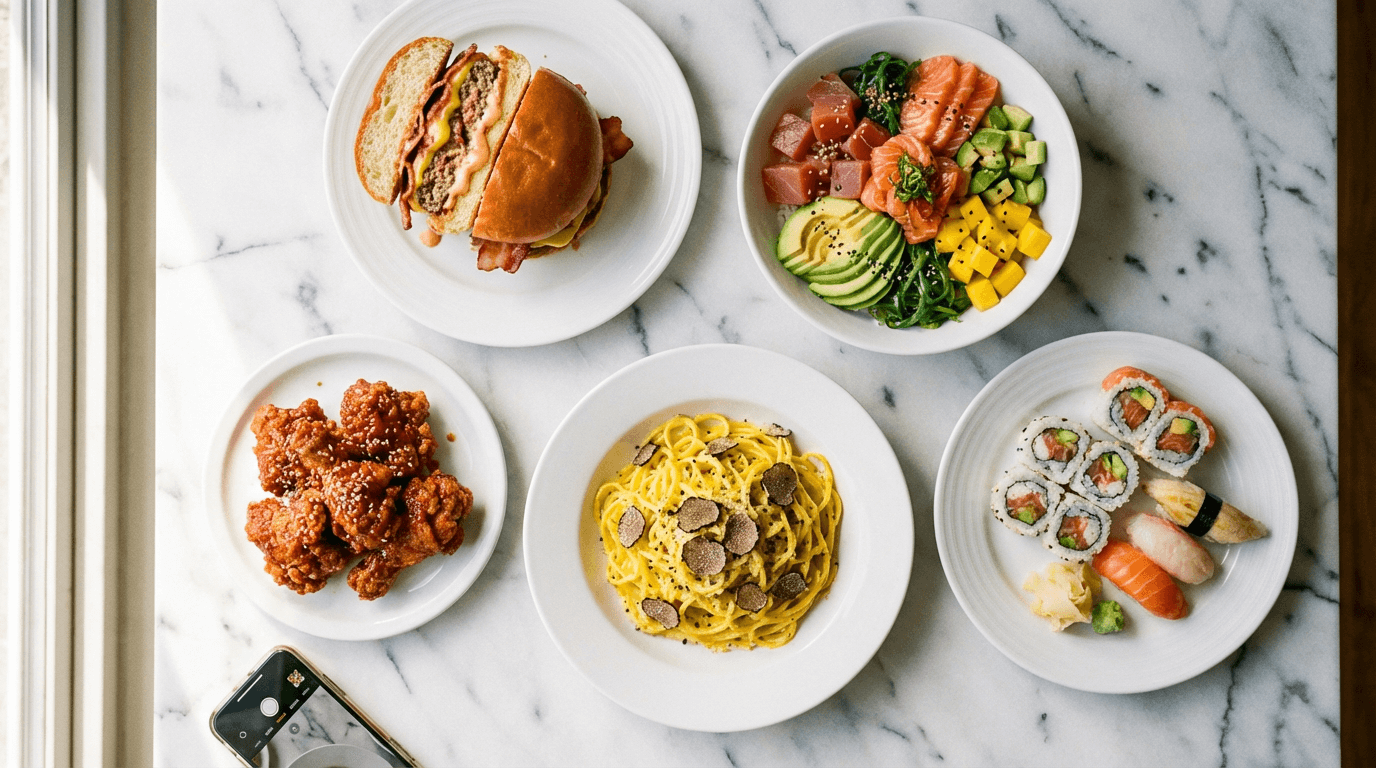
Struggling with Uber Eats photo requirements? You're not alone — rejected menu photos are the most common headache restaurant owners face when setting up their Uber Eats store. This guide covers every Uber Eats photo requirement you need to know in 2026: exact image specifications, content guidelines, the step-by-step upload process, common rejection reasons and how to fix them, and a full comparison table for sellers also listing on DoorDash or Grubhub.
Quick Summary: Uber Eats menu item photos need a 5:4 to 6:4 aspect ratio at minimum 1200×800 pixels in JPG, PNG, or GIF format (max 10 MB). Cover photos require exactly 2880×2304 pixels in JPEG. Every photo is manually reviewed — reviews take up to 3 business days. The most common rejection reasons are wrong aspect ratio, multiple items in one shot, and text overlays.
Why Your Uber Eats Photos Directly Impact Orders
Uber Eats uses a merchant "Success Score" that factors in your menu details — including what percentage of menu items have photos and descriptions. A higher Success Score unlocks enhanced visibility in the app, recognition badges, and discounts on advertising tools.
The numbers back this up. Restaurants with professional menu photography see 20–35% higher order volumes and 15–25% improvements in average order value, according to Uber Eats business data. In a market where Uber Eats holds roughly 26% of U.S. delivery share, that's a significant revenue difference.
Here's the other thing: Uber Eats now lets customers submit photos for menu items that don't have merchant images. These user-submitted photos appear on your restaurant page without your approval. If you haven't uploaded your own images, someone else's phone snap of your half-eaten burger could represent your business. Better to control your own visuals.
Uber Eats Photo Requirements: Complete Specifications (2026)
Uber Eats has three photo types, each with different technical requirements. Getting the dimensions wrong is the single most common reason photos get rejected, so bookmark this section.
Menu Item Photos
These appear next to individual dishes in your menu and are the core of Uber Eats photo requirements for restaurants.
| Specification | Requirement |
|---|---|
| Width | 550–10,000 pixels |
| Height | 440–10,000 pixels |
| Recommended Minimum | 1200 × 800 pixels |
| Aspect Ratio | 5:4 to 6:4 |
| File Formats | JPG, PNG, GIF |
| Max File Size | 10 MB |
Important: The Uber Eats app crops menu item thumbnails to a 1:1 square. Always keep your dish centered with breathing room on all sides so nothing gets cut off when the thumbnail renders. Shooting at 5:4 with the food dead center is your safest bet.
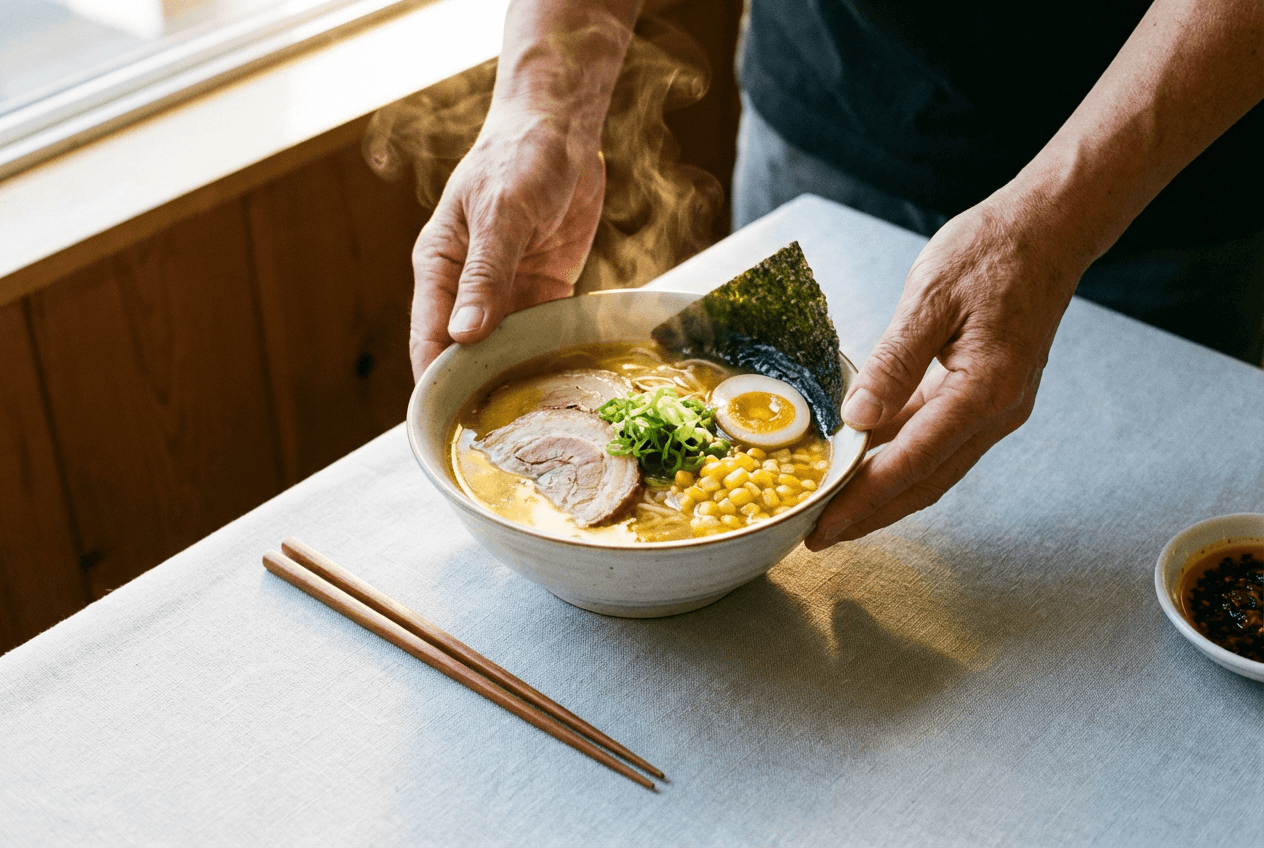 Restaurant owner carefully centering a ramen bowl on clean surface for Uber Eats menu item photography
Cover Photos (Hero Images)
Your cover photo sits at the top of your restaurant page — it's the first impression customers get when they tap into your store.
| Specification | Requirement |
|---|---|
| Dimensions | 2880 × 2304 pixels |
| Aspect Ratio | 5:4 |
| File Format | JPEG only |
| Content | Multiple dishes (3–5 items recommended) |
Unlike menu item photos, cover photos should showcase variety. A single dish looks sparse here. Aim for 3–5 items that represent the range of your menu, arranged attractively.
Profile Photos
Your profile photo appears in Uber Eats search results and category listings.
| Specification | Requirement |
|---|---|
| Minimum Dimensions | 1920 × 1080 pixels |
| Aspect Ratio | 16:9 |
This is your storefront's "thumbnail" when customers browse Uber Eats. Choose something instantly recognizable that represents your brand.
Content Guidelines: What Gets Approved vs. Rejected
Every photo you upload goes through Uber Eats' manual review process. Understanding these content guidelines saves you from the frustrating back-and-forth of resubmissions.
Your menu item photos must:
- Show a single item only (exactly what the customer will receive)
- Frame the food in the center of the image
- Accurately represent the actual dish
- Be original photos you own or have rights to use
Your photos will be rejected if they contain:
- Multiple items — A pizza photo showing pizza and a side salad gets rejected. Each photo = one menu item.
- People or faces — Hands holding food are acceptable, but no visible faces.
- Text or promotional content — No "50% off" banners, no price tags, no overlay text of any kind.
- Logos or watermarks — Exception: logos that are naturally part of the product packaging (like a branded coffee cup).
- Stock photos — Uber Eats explicitly rejects stock images from search engines or stock photo websites. They must be your actual dishes.
Additional rules for cover photos:
- No logo-only images
- No building storefronts or restaurant interiors
- No animals
- No black and white photography
- No collages
- Must show multiple items (not a single product)
By uploading, you grant Uber a sub-license to modify your photos (including cropping and color adjustment), so be aware of that.
Quality Standards That Pass Uber Eats Photo Review
Meeting the technical photo specifications is only half the battle. Your images also need to look good enough to make someone hungry. Here's what the reviewers look for:
Lighting
- Use natural, indirect light from a window. This is the single biggest quality difference between amateur and professional food photos.
- Avoid flash — it flattens food and creates harsh reflections.
- Avoid fluorescent overhead lighting — it casts unflattering green/yellow tones.
- If natural light isn't available, use a softbox or diffused LED panel placed to the side.
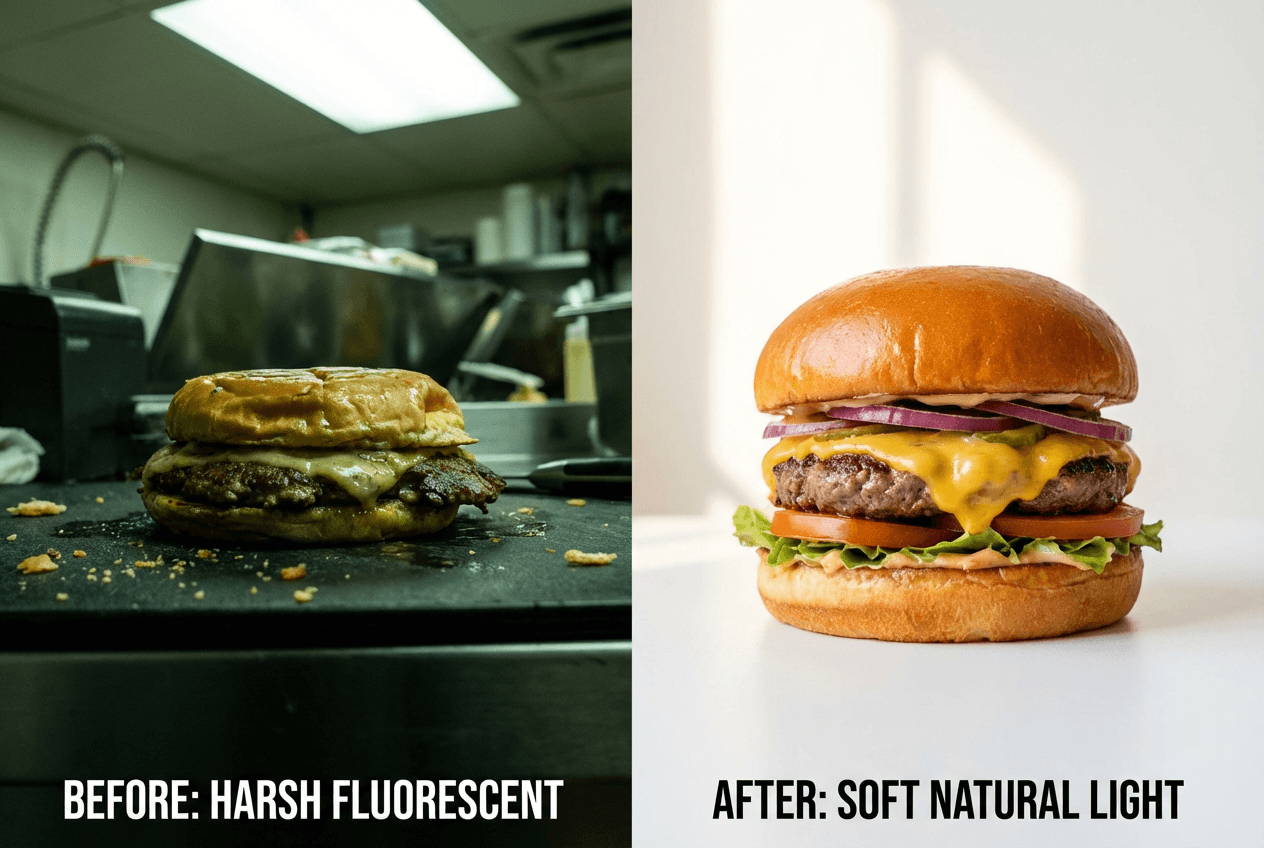 Side-by-side food photo lighting comparison showing bad fluorescent vs good natural window light for delivery apps
For more on getting great shots with just your phone, check out our iPhone food photography tips.
Background
- Keep it clean and neutral. Light gray, white, or natural wood surfaces work well.
- Remove any clutter — stray utensils, receipts, other plates, napkins.
- No fingerprints on glasses or sauce smudges on plate rims.
Food Presentation
- Photograph immediately after plating. Food starts looking limp within minutes.
- Add a fresh garnish for a pop of color — but only if it's actually part of the dish.
- For burgers, sandwiches, and wraps, consider cutting the item in half and stacking the halves to show what's inside.
Camera Angles
- Top-down (overhead): Best for flat dishes — pizzas, bowls, salads, sushi platters.
- 45-degree angle: Best for taller items — burgers, stacked sandwiches, layered desserts, drinks.
- Avoid extreme close-ups where you can't tell what the dish is or gauge the portion size.
How to Upload Photos to Uber Eats (Step-by-Step)
Once your photos meet all the Uber Eats photo requirements above, here's how to actually get them uploaded and approved.
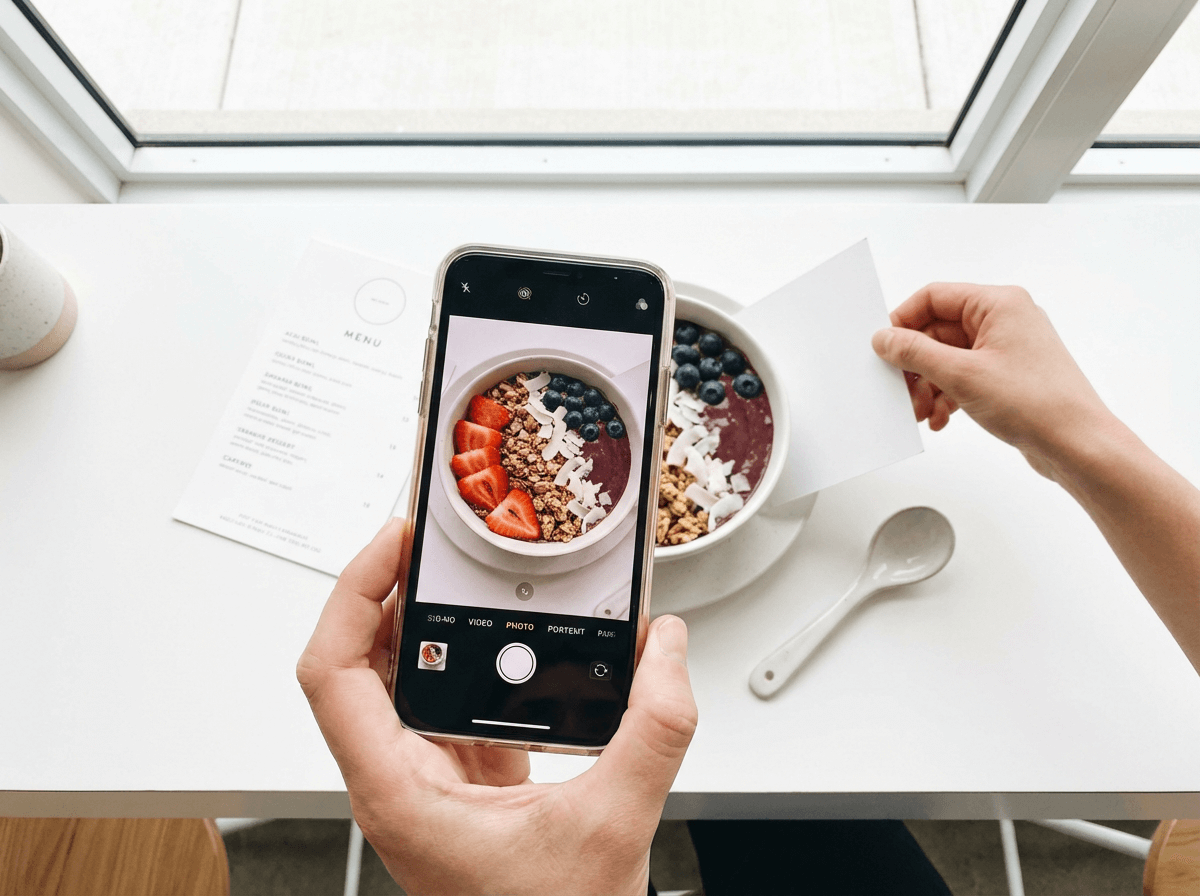 Smartphone capturing overhead photo of colorful acai bowl for Uber Eats upload with natural lighting
Uploading Menu Item Photos
- Log in to your Uber Eats Manager account
- Open Menu Maker
- Navigate to the Items tab
- Click into the specific item you want to add a photo for
- At the top of the Item detail page, find the Photo section
- Drag and drop your image or click Browse files to upload
- Click Save in the top right corner
- Click Request Approval when the popup appears
Note: First-time users will be prompted to accept Terms and Conditions before uploading. Once you request approval, the item detail page is locked — you can't edit anything until the photo is approved or rejected.
Uploading Cover Images
- Sign in to Uber Eats Manager
- Go to the Stores Page tab
- Click the dropdown in the top right → select Cover image
- Click Update cover image
- Upload your photo and click Save
What Happens After Upload
- In the Items tab, status indicator icons show whether each photo is in review or has been rejected.
- Approved photos appear un-grayed next to the menu item.
- Rejected photos show the reason on the item detail page, and you'll receive an email with instructions.
- Review timeline: up to 3 business days. Plan ahead for menu launches or seasonal updates.
7 Common Uber Eats Photo Rejection Reasons (and How to Fix Them)
Photos getting rejected? Here are the most common Uber Eats photo requirements that trip restaurant owners up, and exactly how to fix each one:
| # | Rejection Reason | How to Fix It |
|---|---|---|
| 1 | Wrong aspect ratio | Re-export at 5:4 to 6:4 for menu items, exactly 5:4 for covers |
| 2 | Multiple items in one photo | Reshoot with only the specific menu item visible |
| 3 | Text or logos overlaid | Remove all overlays — no promo text, watermarks, or price tags |
| 4 | Blurry or low resolution | Reshoot in good light; ensure image is at least 1200×800px |
| 5 | Poor lighting | Move to a window with indirect natural light; avoid flash and fluorescent |
| 6 | Stock photo detected | Upload original photos of your actual dishes only |
| 7 | Messy or unsanitary appearance | Wipe plate rims, clear background clutter, use fresh garnishes |
If your photo is rejected, you can edit it and resubmit through Menu Maker. The rejection reason is also sent via email.
Avoid the most common delivery photography mistakes by prepping your dishes and setup before you start shooting.
Uber Eats Photo Tips That Actually Increase Conversions
Getting your photos approved is step one. Making them sell is step two.
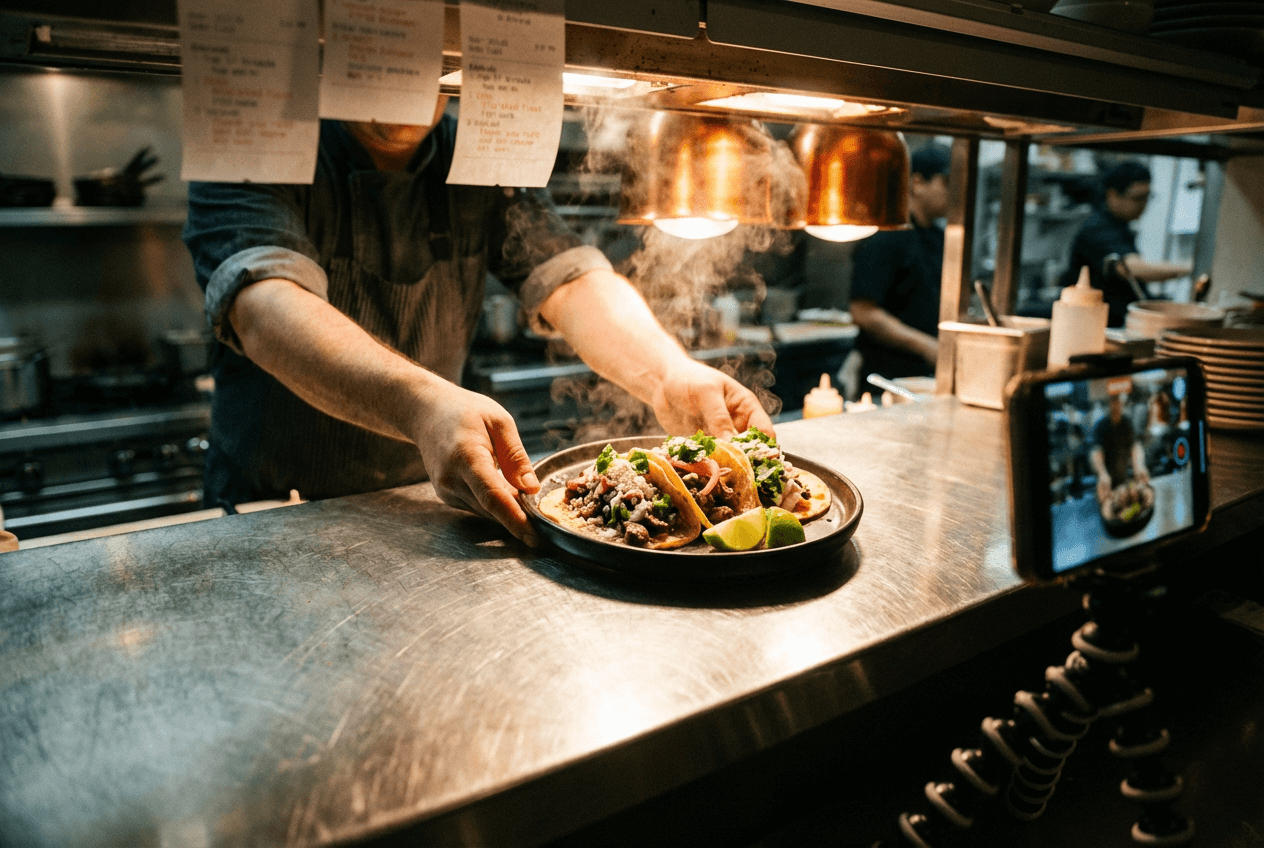 Freshly plated tacos being photographed at restaurant kitchen pass for delivery app menu listing
Pick your hero image strategically. Your cover photo is prime real estate on your Uber Eats store. Choose your most visually striking dishes — items with bold colors, interesting textures, and clear ingredient visibility perform best. Think loaded nachos over plain rice.
Shoot for the thumbnail. Most Uber Eats browsing happens on mobile, where your menu item photos display as small 1:1 squares. If the dish isn't immediately recognizable at thumbnail size, it won't get tapped. Keep compositions simple: one dish, centered, clean background.
Maintain visual consistency. When customers scroll your full menu, inconsistent photo styles (some dark, some bright, different backgrounds) look unprofessional and erode trust. Shoot all your items in the same session with the same lighting setup. This consistency makes your storefront look polished.
Show the most appetizing version. A drizzle of sauce, a sprinkle of sesame seeds, or visible steam can make the difference between a scroll-past and an order. Just make sure the photo still accurately represents what the customer will receive.
For a deeper dive into multi-platform optimization, see our complete platform photography guide.
Uber Eats vs. DoorDash vs. Grubhub: Photo Requirements Compared
If you're listing on multiple delivery platforms, you'll need different photo exports for each one. Here's how the photo requirements stack up across the big three:
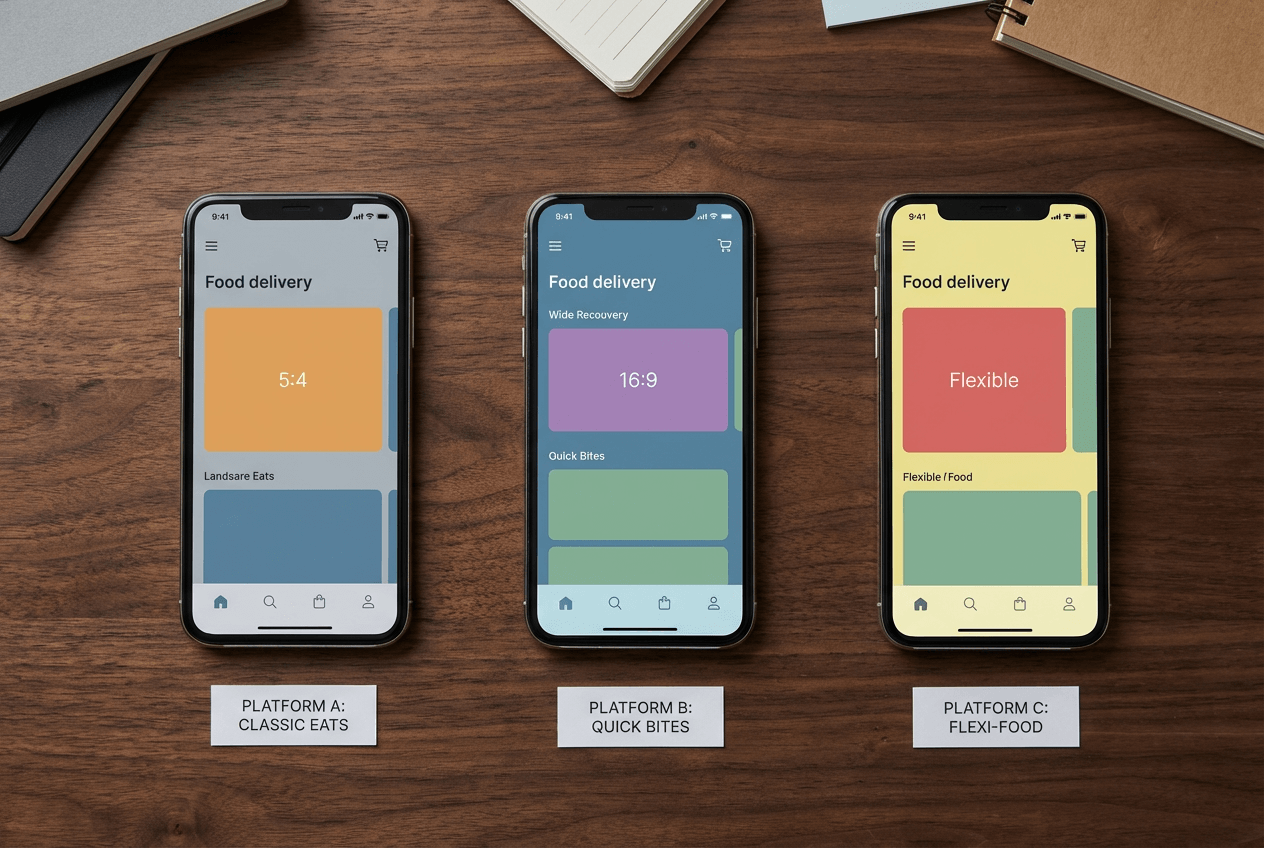 Three delivery platform photo aspect ratios compared showing Uber Eats 5:4 vs DoorDash 16:9 formats
| Specification | Uber Eats | DoorDash | Grubhub |
|---|---|---|---|
| Menu Item Aspect Ratio | 5:4 to 6:4 | 16:9 | No strict ratio |
| Minimum Resolution | 1200 × 800 px (recommended) | 1400 × 800 px | 200 × 200 px |
| File Formats | JPG, PNG, GIF | JPG, JPEG, PNG | JPG, PNG |
| Max File Size | 10 MB | 16 MB (portal) / 2 MB (integrations) | Not specified |
| Cover Photo Size | 2880 × 2304 px | Varies by placement | N/A |
| Review Time | Up to 3 business days | 1–5 business days | Varies |
| Stock Photos Allowed? | No | No | No |
| AI-Enhanced Photos? | Allowed if representative | Allowed if representative | Allowed if representative |
Key takeaway: You can't reuse the exact same image across all three platforms without cropping issues. Uber Eats needs 5:4, DoorDash needs 16:9, and Grubhub is the most flexible. The smartest approach: shoot one great base photo, then export platform-specific crops.
Want to understand the full food photography cost of managing photos across platforms? Our cost breakdown covers professional photographers, DIY, and AI-enhanced approaches.
How to Create Uber Eats-Ready Photos with FoodShot AI
If reshooting your entire menu sounds overwhelming (or expensive), FoodShot AI's Delivery preset was built with these Uber Eats photo requirements in mind; check each result against the rules above before you upload.
Here's how it works:
- Upload any food photo — even a quick smartphone snap taken under kitchen lighting
- Select the Delivery preset — it automatically optimizes for delivery app standards: clean backgrounds, centered composition, balanced lighting
- Download your enhanced photo — ready to upload directly to Uber Eats in the correct format
The whole process takes about 2 minutes per image. Compare that to traditional food photography, which typically costs $500–$1,500 per session and requires scheduling a photographer, prepping dishes, and waiting days for edited files.
FoodShot also lets you:
- Swap backgrounds to clean, neutral surfaces that pass Uber Eats review
- Adjust lighting so every menu photo has consistent, appetizing illumination
- Remove unwanted elements like stray crumbs, fingerprints, or background clutter
- Add garnishes or sauces to make dishes look more vibrant
All paid plans include a commercial use license, so you can use the enhanced images anywhere — Uber Eats, DoorDash, your website, social media, or printed menus.
Explore our full delivery app photography tools to see before-and-after examples from real restaurants.
Frequently Asked Questions
What size should Uber Eats menu photos be?
Menu item photos should be between 550–10,000 pixels wide and 440–10,000 pixels tall. The recommended minimum is 1200 × 800 pixels with a 5:4 to 6:4 aspect ratio. Cover photos need exactly 2880 × 2304 pixels at a 5:4 ratio. These Uber Eats photo requirements apply to all merchants uploading through Uber Eats Manager.
How long does Uber Eats photo review take?
Reviews take up to 3 business days. You'll see the status in the Items tab of Menu Maker, and you'll receive an email if a photo is rejected with the specific reason.
Can I use stock photos on Uber Eats?
No. Uber Eats explicitly rejects stock photos from search engines or stock photo websites. All images must be original photos of your actual menu items that you own or have usage rights for.
Can I use AI-enhanced photos on Uber Eats?
For merchant-submitted menu photos, Uber Eats allows photos that are enhanced or edited as long as they accurately represent the actual dish customers will receive. The key rule: the photo must be a truthful representation of your food. Tools like FoodShot AI that enhance real photos of your dishes (improving lighting, backgrounds, and presentation) produce images that meet this standard because they start with your actual food.
Note: Uber Eats has separate, stricter rules for customer-submitted photos, which must be unedited snapshots. The merchant photo guidelines are what apply when you upload through Uber Eats Manager.
Why do my Uber Eats photos keep getting rejected?
The most common reasons are: wrong aspect ratio (must be 5:4 to 6:4), showing multiple items in one photo, text or logos overlaid on the image, blurry or poorly lit shots, and using stock photos. Check the rejection reason in Menu Maker — it'll tell you exactly what to fix.
Do I need a professional camera for Uber Eats?
No. A recent smartphone (iPhone 12 or newer, or equivalent Android) is more than capable of producing photos that meet Uber Eats photo requirements for resolution. What matters more than the camera is good lighting (natural window light), a clean background, and proper food presentation. For tips on getting the most out of your phone camera, see our iPhone food photography guide.